LaxyTech
JT Ambassador
Connecting your PC to a DStv decoder can allow you to stream content or use your PC as a display for DStv programming. Here are a few methods to achieve this, depending on what you want to do:
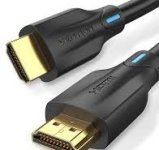
Method 1: Using HDMI Cable
1. Check Your PC and DStv Decoder: Ensure that both your PC and the DStv decoder have HDMI ports. Most modern PCs and decoders do.
2. Connect the HDMI Cable:
- Plug one end of the HDMI cable into the HDMI output port on the DStv decoder.
- Plug the other end into an available HDMI input port on your PC (if it has one) or into an external monitor connected to your PC.
3. Select Input Source:
- If you're using an external monitor, switch it to the correct HDMI input source.
- If you're using a laptop, you may need to press a function key (like Fn + F4, F5, etc.) to toggle between display modes.
4. Adjust Display Settings (if necessary):
- On Windows, right-click on the desktop and select "Display settings" to adjust how you want the screens configured (duplicate, extend, etc.).
Method 2: Using Screen Mirroring or Streaming Apps
If you want to stream content from your DStv account on your PC:
1. DStv Now App:
- Download and install the DStv Now app on your PC if available.
- Log in with your DStv credentials.
- You can then stream live TV or catch up on shows directly from your computer.
2. Screen Mirroring:
- If you have a smart TV or device that supports screen mirroring, you can mirror content from your mobile device (using apps like Google Home) and then connect that device to your PC via streaming software.
Method 3: Using Capture Card
If you're looking for more advanced options like recording or streaming live TV:
1. Get a Capture Card: Purchase a video capture card that connects via USB.
2. Connect Your Devices:
- Connect the output of the DStv decoder (usually via HDMI) into the input of the capture card.
- Connect the capture card to your PC via USB.
3. Install Software: Install any necessary software that comes with the capture card for recording or streaming purposes.
4. Configure Settings: Open video recording/streaming software (like OBS Studio) and configure it to recognize the capture card as a video source.
Additional Tips
- Ensure all devices are powered off when making connections.
- Check for any required drivers if using hardware like capture cards.
- For online streaming through apps, ensure you have a stable internet connection.
By following these methods, you should be able to connect your PC with DStv effectively!
> ⓘ _Follow our Channel for more :_

 whatsapp.com
 _LaxyTech_
Method 1: Using HDMI Cable
1. Check Your PC and DStv Decoder: Ensure that both your PC and the DStv decoder have HDMI ports. Most modern PCs and decoders do.
2. Connect the HDMI Cable:
- Plug one end of the HDMI cable into the HDMI output port on the DStv decoder.
- Plug the other end into an available HDMI input port on your PC (if it has one) or into an external monitor connected to your PC.
3. Select Input Source:
- If you're using an external monitor, switch it to the correct HDMI input source.
- If you're using a laptop, you may need to press a function key (like Fn + F4, F5, etc.) to toggle between display modes.
4. Adjust Display Settings (if necessary):
- On Windows, right-click on the desktop and select "Display settings" to adjust how you want the screens configured (duplicate, extend, etc.).
Method 2: Using Screen Mirroring or Streaming Apps
If you want to stream content from your DStv account on your PC:
1. DStv Now App:
- Download and install the DStv Now app on your PC if available.
- Log in with your DStv credentials.
- You can then stream live TV or catch up on shows directly from your computer.
2. Screen Mirroring:
- If you have a smart TV or device that supports screen mirroring, you can mirror content from your mobile device (using apps like Google Home) and then connect that device to your PC via streaming software.
Method 3: Using Capture Card
If you're looking for more advanced options like recording or streaming live TV:
1. Get a Capture Card: Purchase a video capture card that connects via USB.
2. Connect Your Devices:
- Connect the output of the DStv decoder (usually via HDMI) into the input of the capture card.
- Connect the capture card to your PC via USB.
3. Install Software: Install any necessary software that comes with the capture card for recording or streaming purposes.
4. Configure Settings: Open video recording/streaming software (like OBS Studio) and configure it to recognize the capture card as a video source.
Additional Tips
- Ensure all devices are powered off when making connections.
- Check for any required drivers if using hardware like capture cards.
- For online streaming through apps, ensure you have a stable internet connection.
By following these methods, you should be able to connect your PC with DStv effectively!
> ⓘ _Follow our Channel for more :_
LaxyTech | WhatsApp Channel
LaxyTech WhatsApp Channel. *Welcome LaxyTech* 🔥 Learn 🔥 Entertainment 📎 Admin https://wa.me/255620842260 📎 Instagram https://www.instagram.com/laxytech_llc?igsh=YzljYTk1ODg3Zg== 📎 Facebook ✊✊✍️✍️. 49 followers
whatsapp.com
_LaxyTech_